FinOps
Use FinOps to find opportunities to reduce costs and compare estimated spend with saved compute across clusters. For CPU and memory rightsizing recommendations, start with Insights.
What FinOps Shows
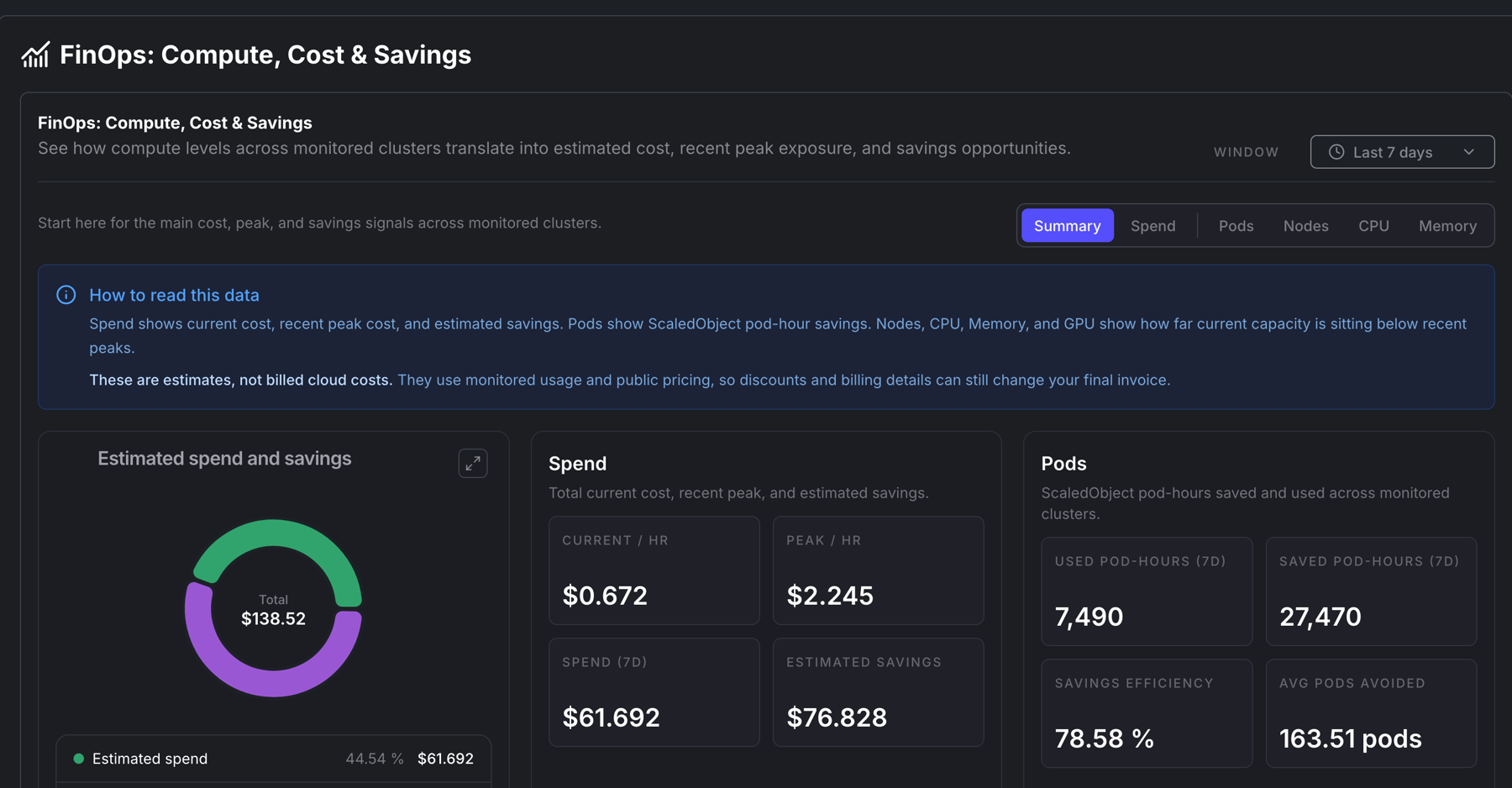
Section titled “What FinOps Shows”FinOps is available at organization and cluster level. The organization view compares monitored clusters. The cluster view drills into one cluster with the same time window and compute type (nodes, CPU, memory, or GPU).
The main views are:
- Summary: current cost, recent peak, estimated savings, and saved capacity by compute type
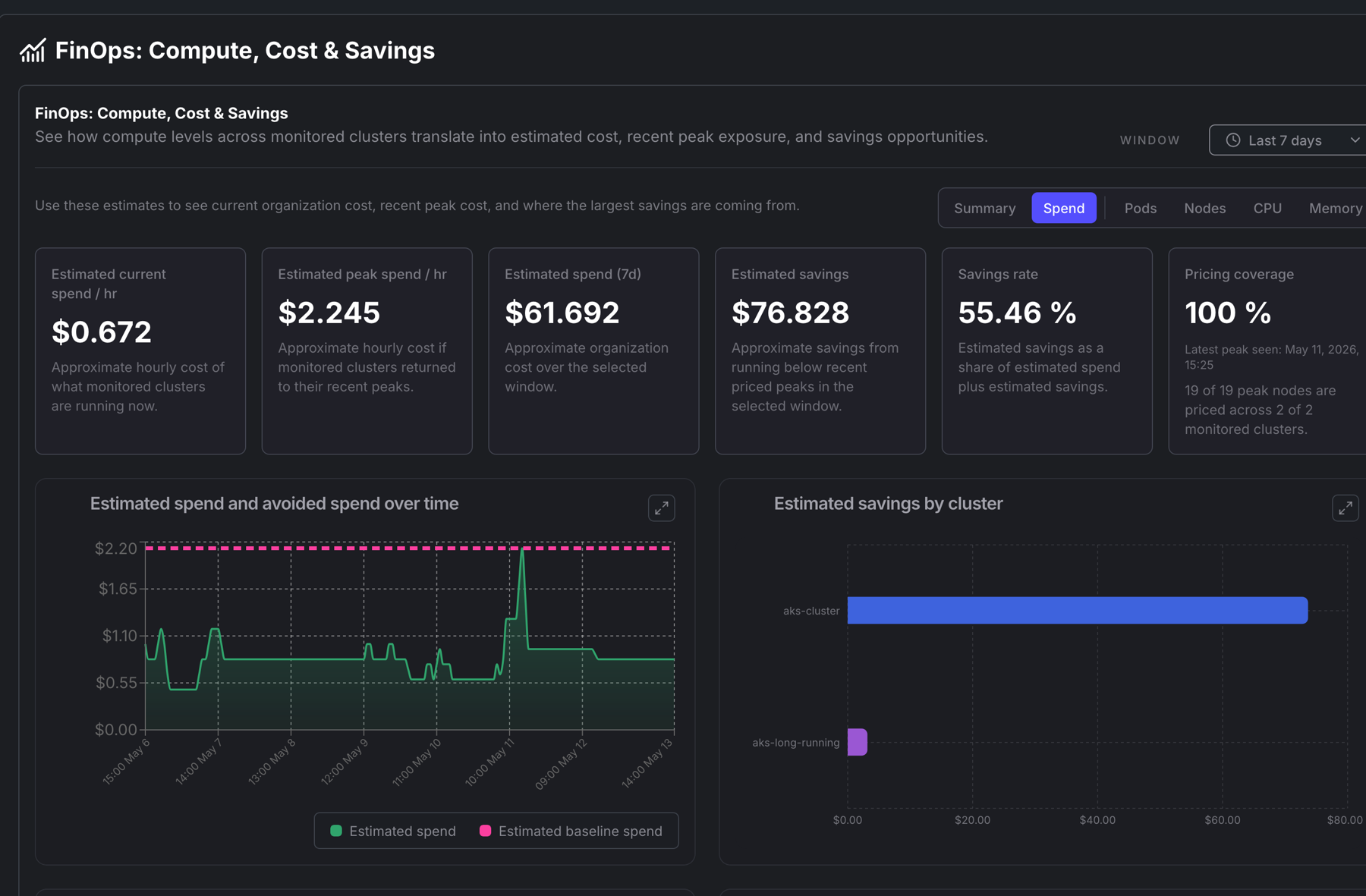
- Spend: estimated current spend, peak spend, window spend, savings rate, and peak cost drivers
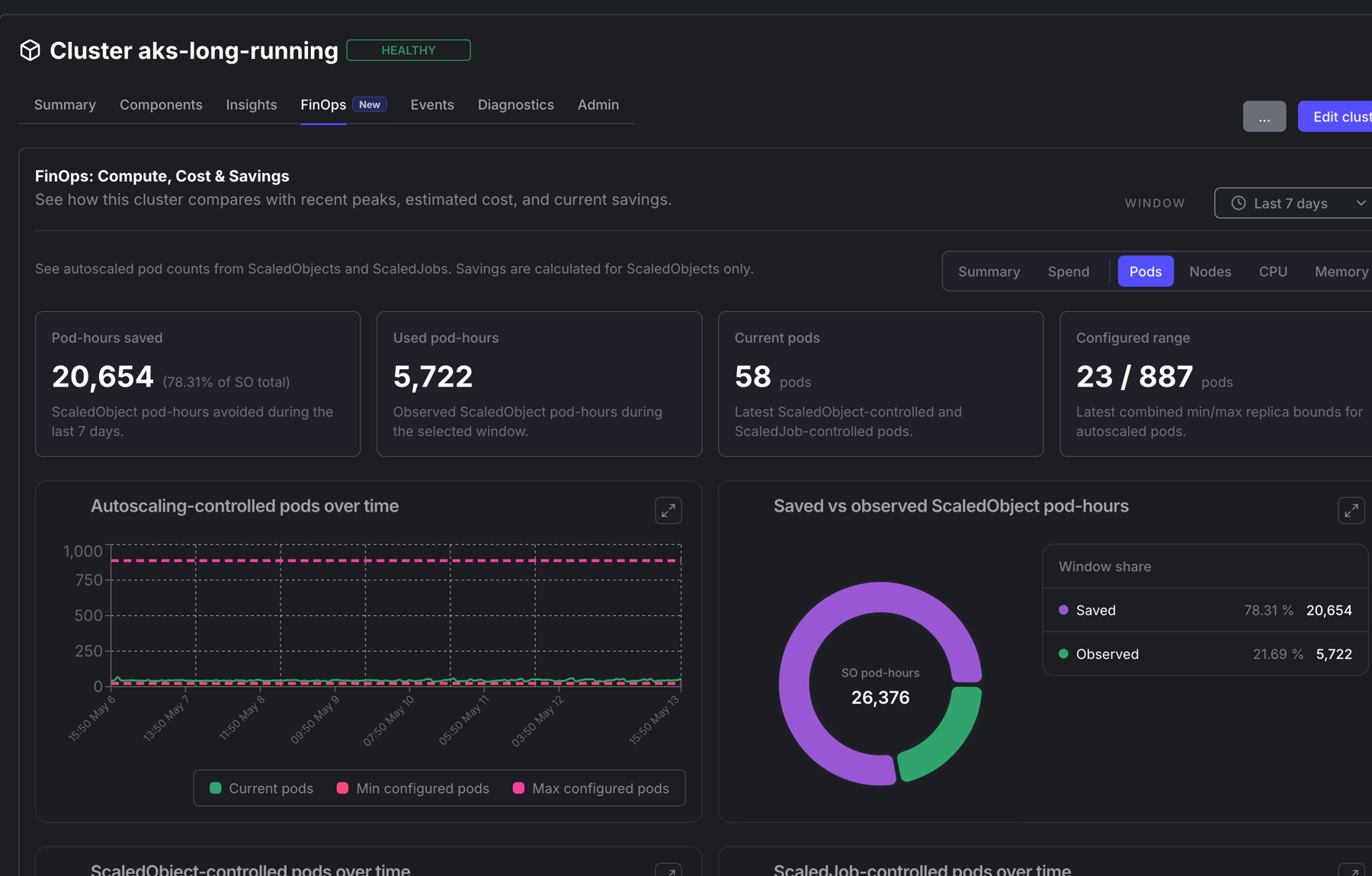
- Pods: ScaledObject pod-hours saved and used, plus autoscaled pod counts over time
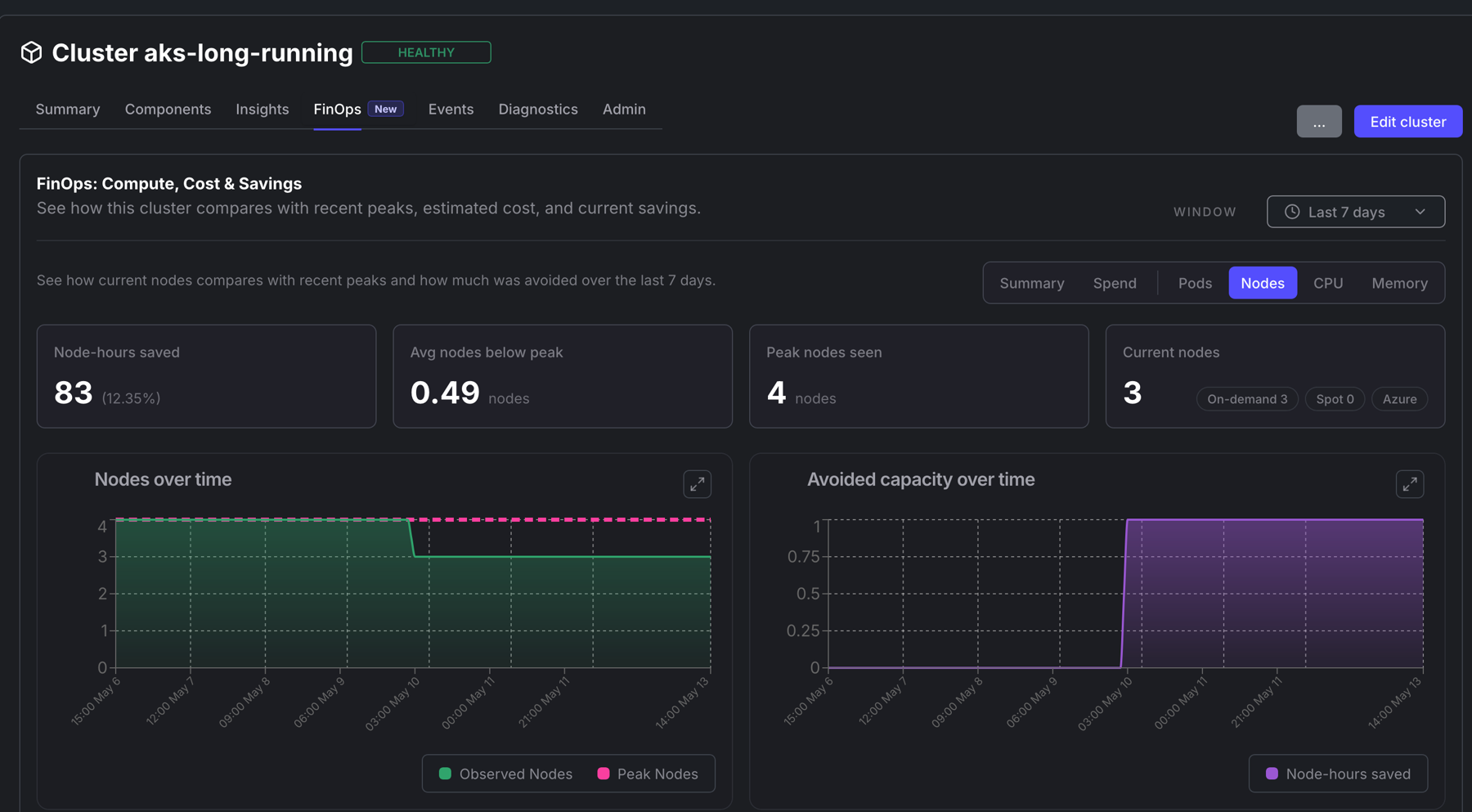
- Nodes, CPU, Memory, and GPU: observed capacity, recent peak capacity, saved capacity, and efficiency
How Savings Are Estimated
Section titled “How Savings Are Estimated”Kedify compares observed capacity during the selected window with a recent peak baseline. The difference is shown as saved compute-hours, such as node-hours, core-hours, GiB-hours, or GPU-node-hours.
Pod savings use ScaledObject data: saved pod-hours compare configured maximum replicas with the replicas that actually ran. ScaledJob pod counts can appear in pod charts, but ScaledObject data is the savings basis.
Spend estimates use the captured peak node mix, cloud provider metadata, and public pricing. The pricing coverage section shows how much of the peak node mix has price data.
Spend and Capacity Drilldowns
Section titled “Spend and Capacity Drilldowns”Use the Spend view to see hourly run-rate, daily estimated savings, current-cost share, and peak cost drivers such as instance type and capacity class.
Cluster drilldowns help explain why a cluster is contributing to cost or savings. For example, node details show current nodes, peak nodes, avoided node-hours, instance type mix, and on-demand versus spot capacity.
Using FinOps Data
Section titled “Using FinOps Data”Use FinOps to prioritize where to investigate first:
- compare 7-day and 30-day windows before making capacity decisions
- check pricing coverage before relying on cost totals
- open high-savings clusters to inspect pods, nodes, CPU, and memory separately
- use Insights alongside FinOps when saved capacity points to workloads with oversized resource requests
Missing or partial FinOps data
Section titled “Missing or partial FinOps data”| Observation | Check | Interpretation and recovery |
|---|---|---|
| No capacity samples | Cluster connection, Agent collection, selected cluster and time window | Restore collection/connectivity and verify fresh capacity samples before interpreting savings. |
| Capacity exists but costs are unavailable | Agent/component version and cloud-provider/node metadata | Confirm the installation supplies the metadata needed for pricing; missing costs do not mean zero spend. |
| Only part of capacity is priced | Pricing coverage and the captured peak node mix | Identify unpriced instance/capacity classes; do not extrapolate partial totals as complete costs. |
| Savings show zero | Selected window, observed capacity versus peak, and valid samples | Zero can be a real result when capacity has not fallen below the baseline; distinguish it from missing data. |
| Estimates differ from invoices | Window, provider price basis, discounts and billing adjustments | Use the estimate as capacity evidence; reconcile actual billing through your cloud-cost process. |
After correcting filters, metadata or collection, verify a fresh sample and pricing coverage in the same selected window. Use rightsizing validation to connect a resource change to application and node outcomes. Insights supplies separate resource advice; its collection diagnostics are not a universal pricing fix. For unresolved data failures, collect diagnostics with the affected cluster/window and coverage evidence, without credentials.