
Red Hat Ecosystem Catalog
This page records the Kedify listing and OperatorHub workflow in the Red Hat Ecosystem Catalog. Confirm current catalog certification, supported OpenShift versions and Operator availability for your subscription before following this workflow. An existing listing is not a tested compatibility matrix; choose an installation method for the Helm alternative.
Start by creating your Kedify account on the Kedify website. Once you have an account, make a note of your unique Organization ID and your API Key. You will need these later.
- Organization ID:
- You can find your Organization ID in the Organization Details Page.
- API Key:
- You can generate your API Key in the Kedify dashboard
Install Kedify From OperatorHub
Section titled “Install Kedify From OperatorHub”- Open your Red Hat OpenShift cluster in your web browser - you will need a cluster-admin account.
- Navigate to the OperatorHub in the OpenShift console.
- Search for Kedify in the OperatorHub search bar.
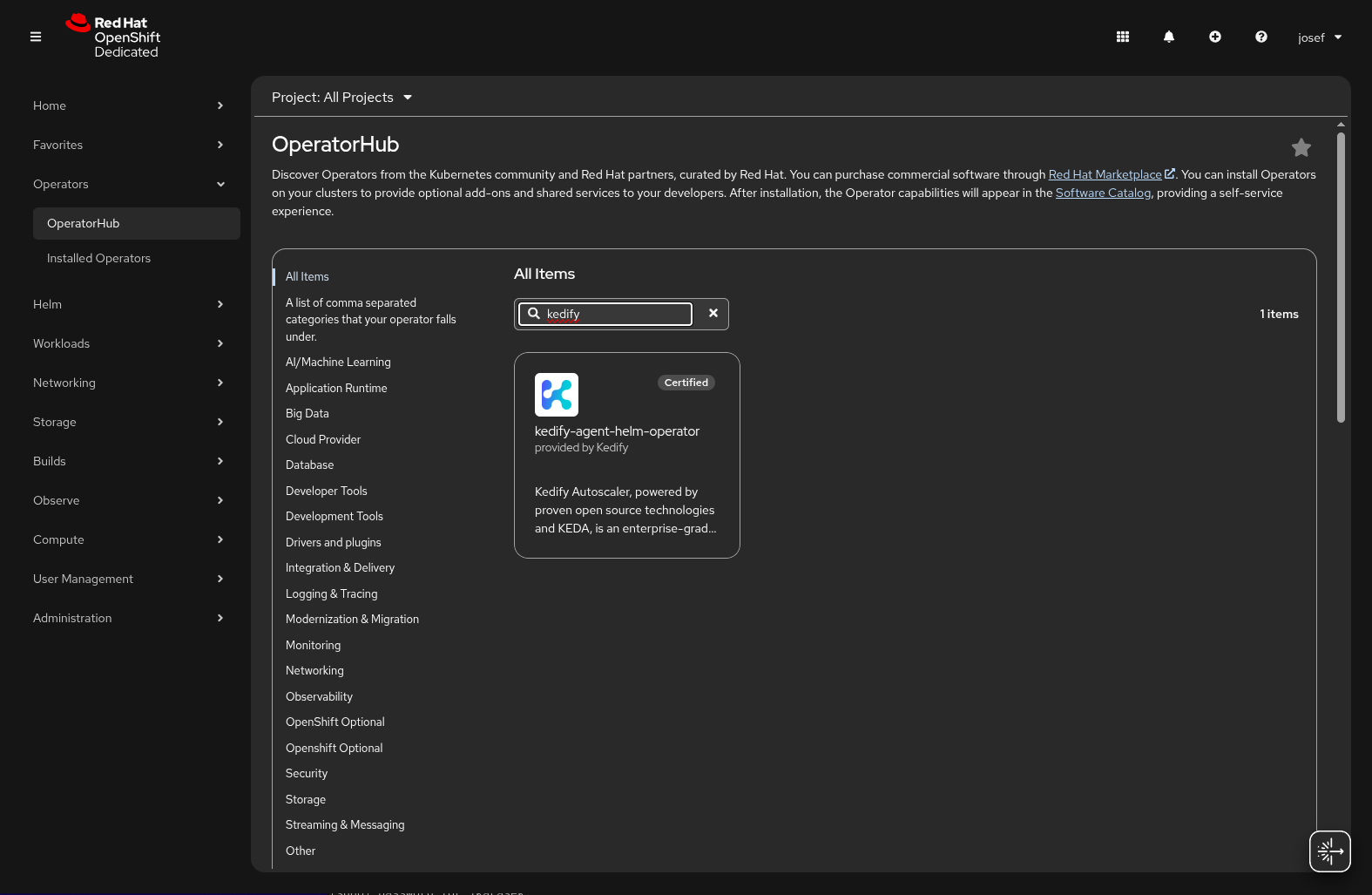
- Click on the Kedify Operator from the search results.
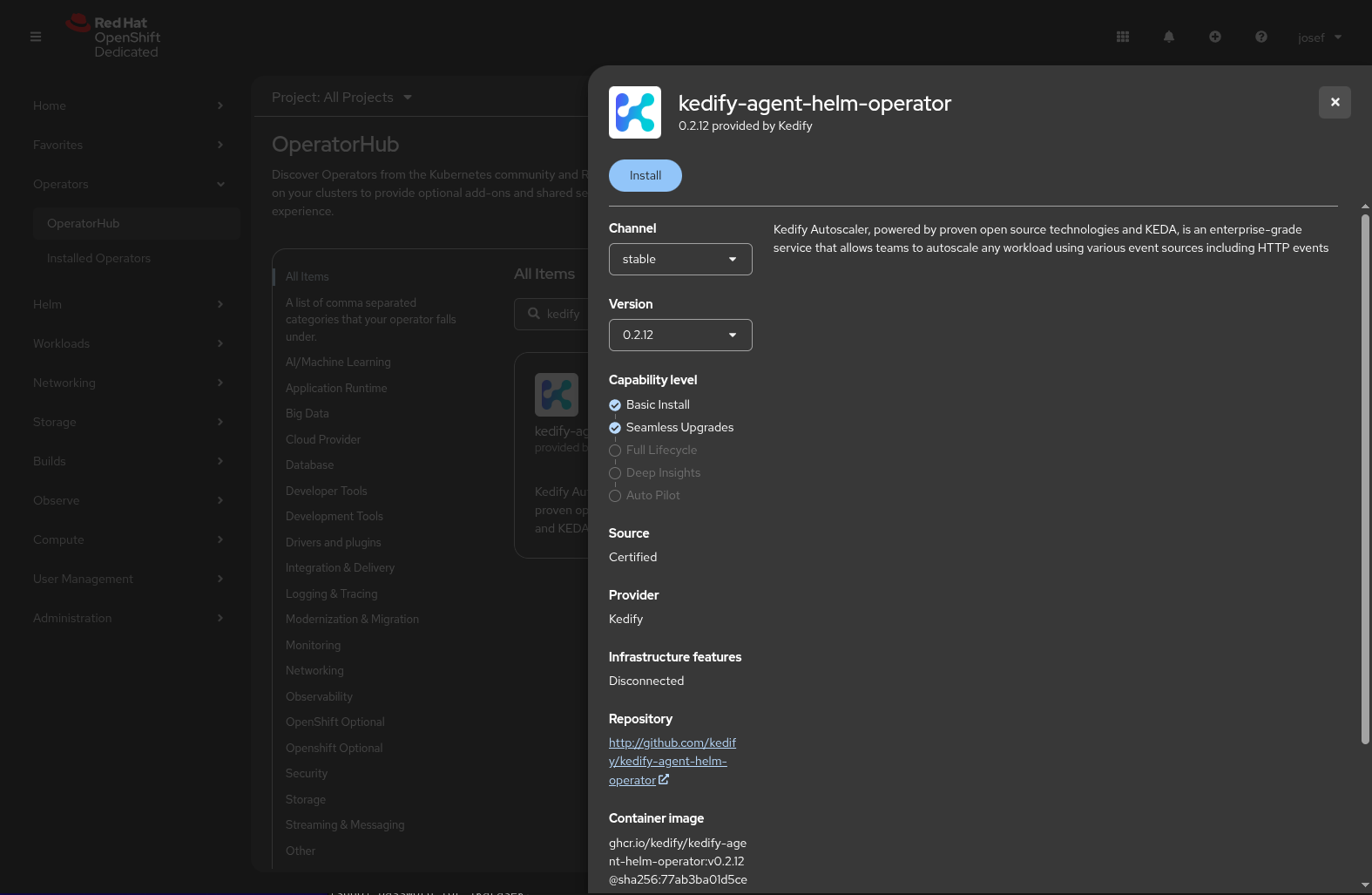
- Click the Install button to start the installation process.
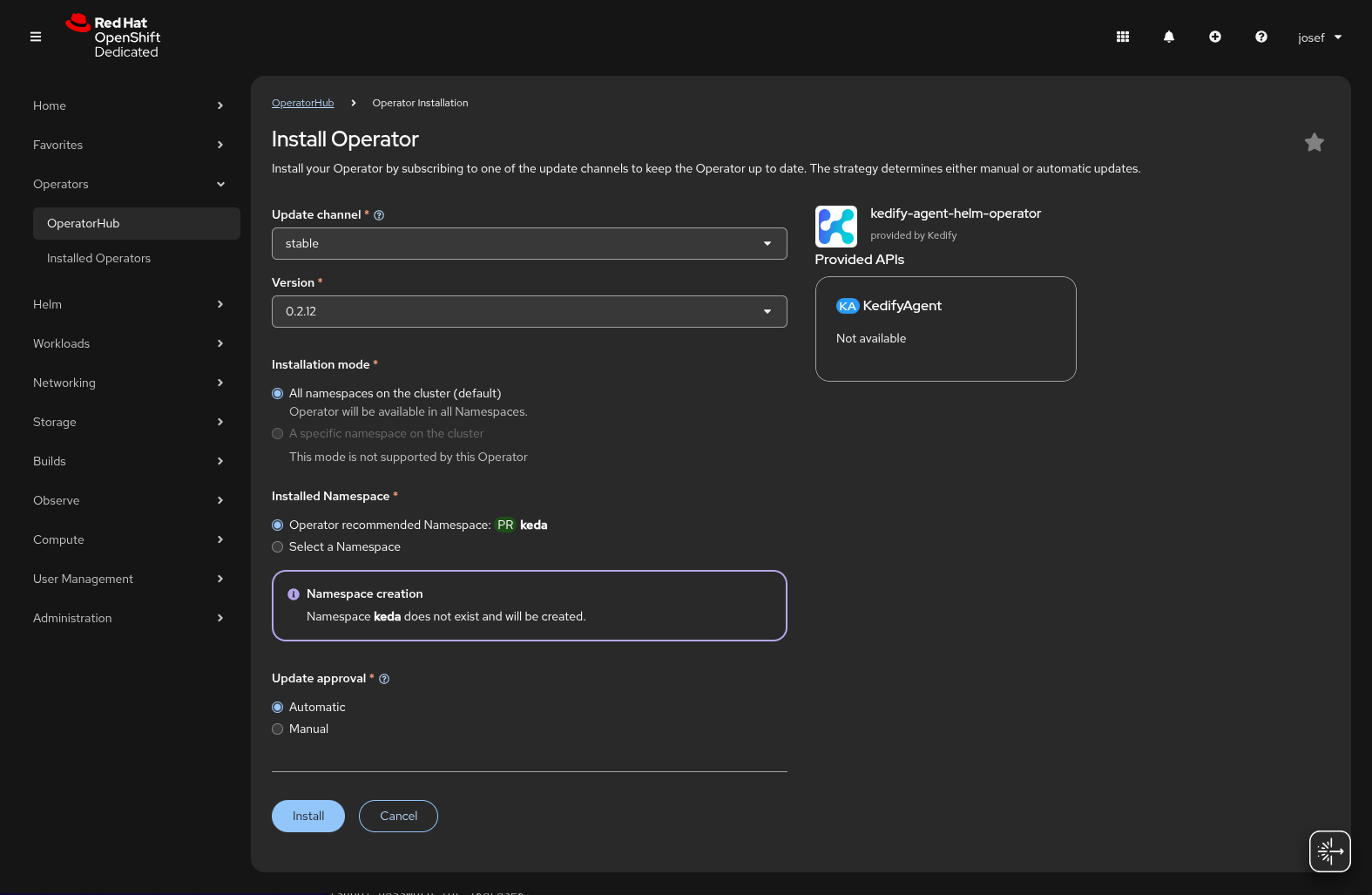
- Review the installation options and click Install again to confirm.
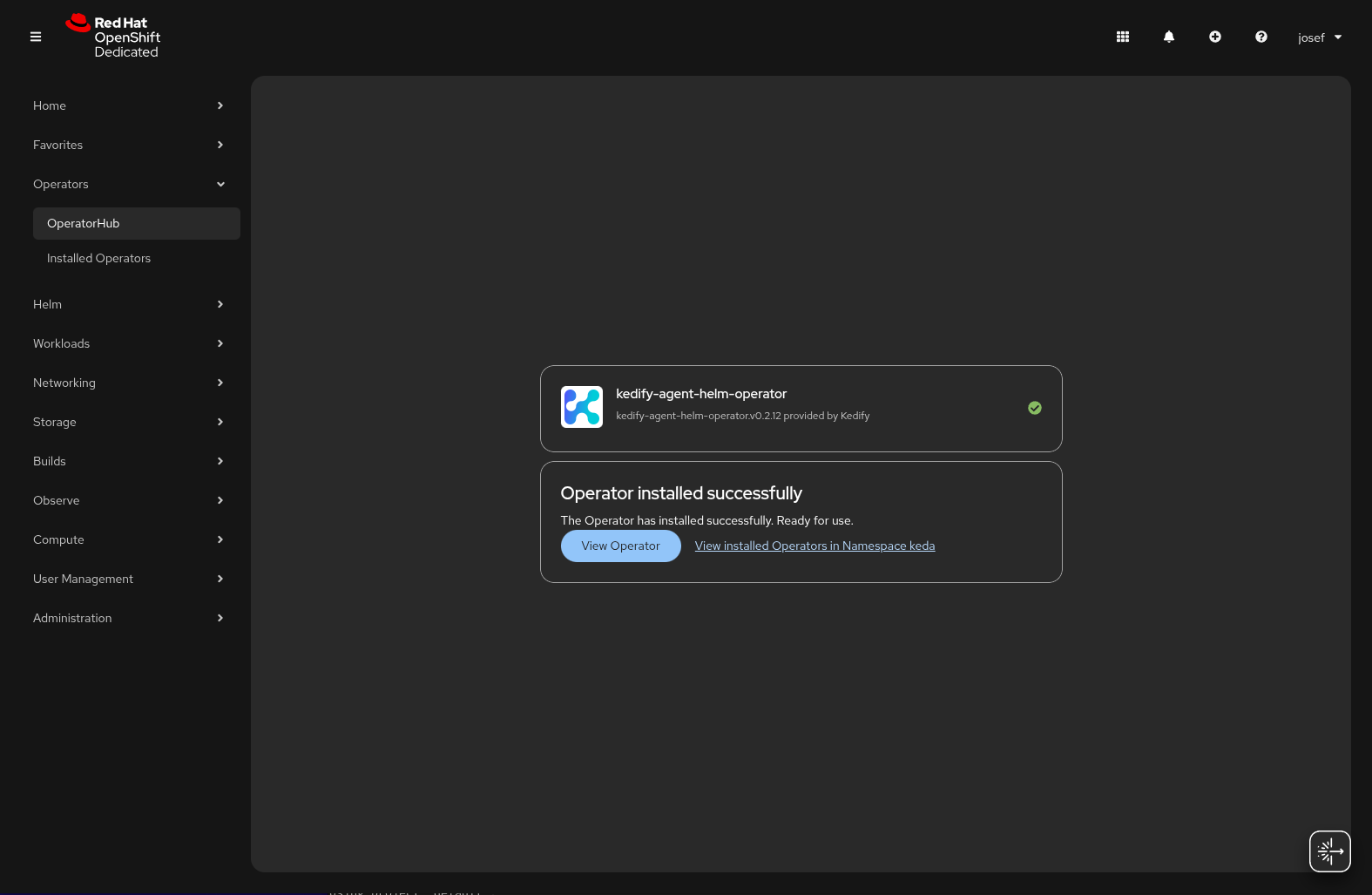
- Once the installation is complete, you will see the Kedify Operator in the list of installed operators and a confirmation message.
- Create a KedifyAgent operand to configure Kedify in your OpenShift cluster.
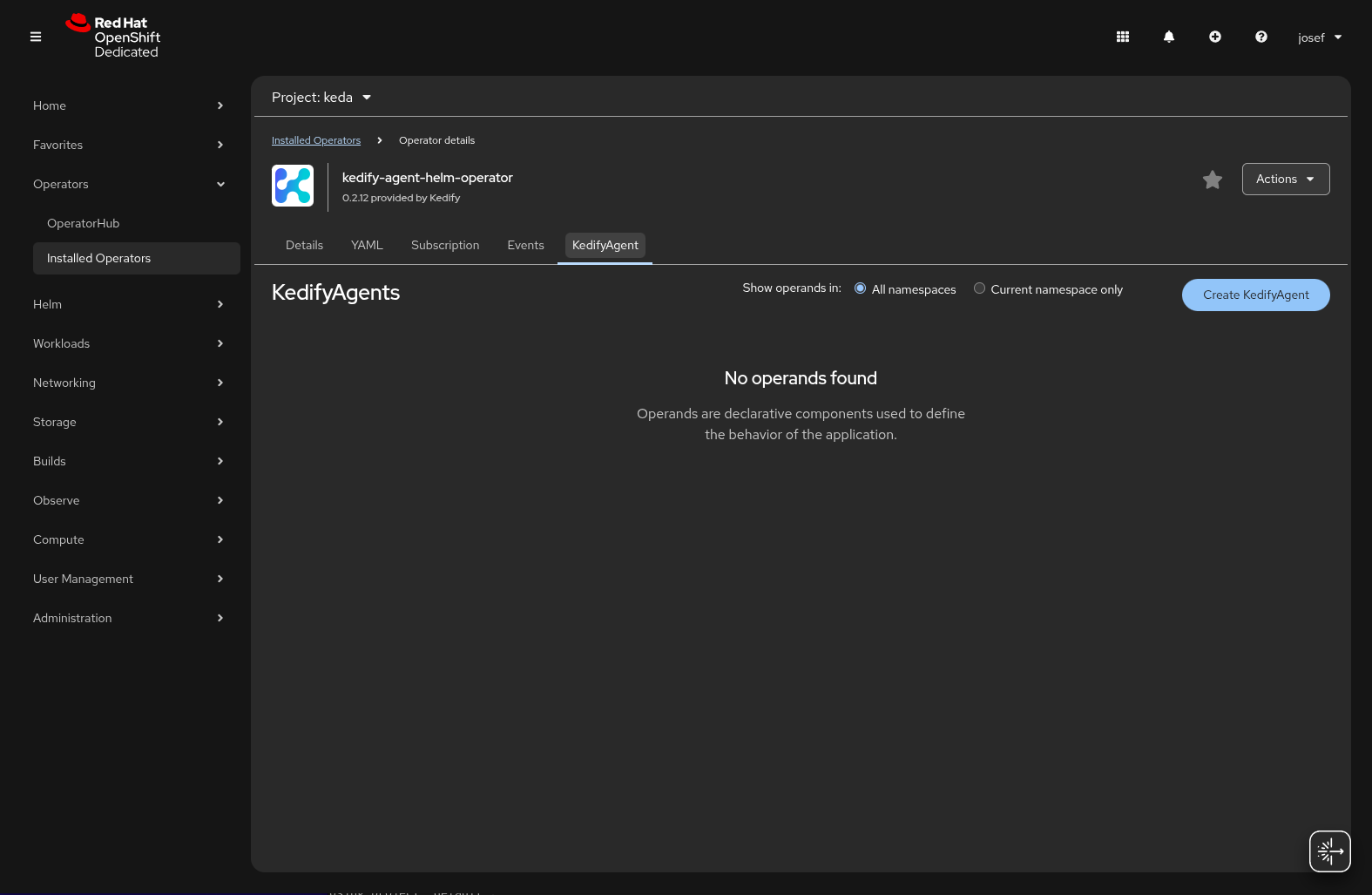
- Enter your Organization ID and API Key in the
specsection of theKedifyAgentresource and click Create to deploy Kedify in your OpenShift cluster.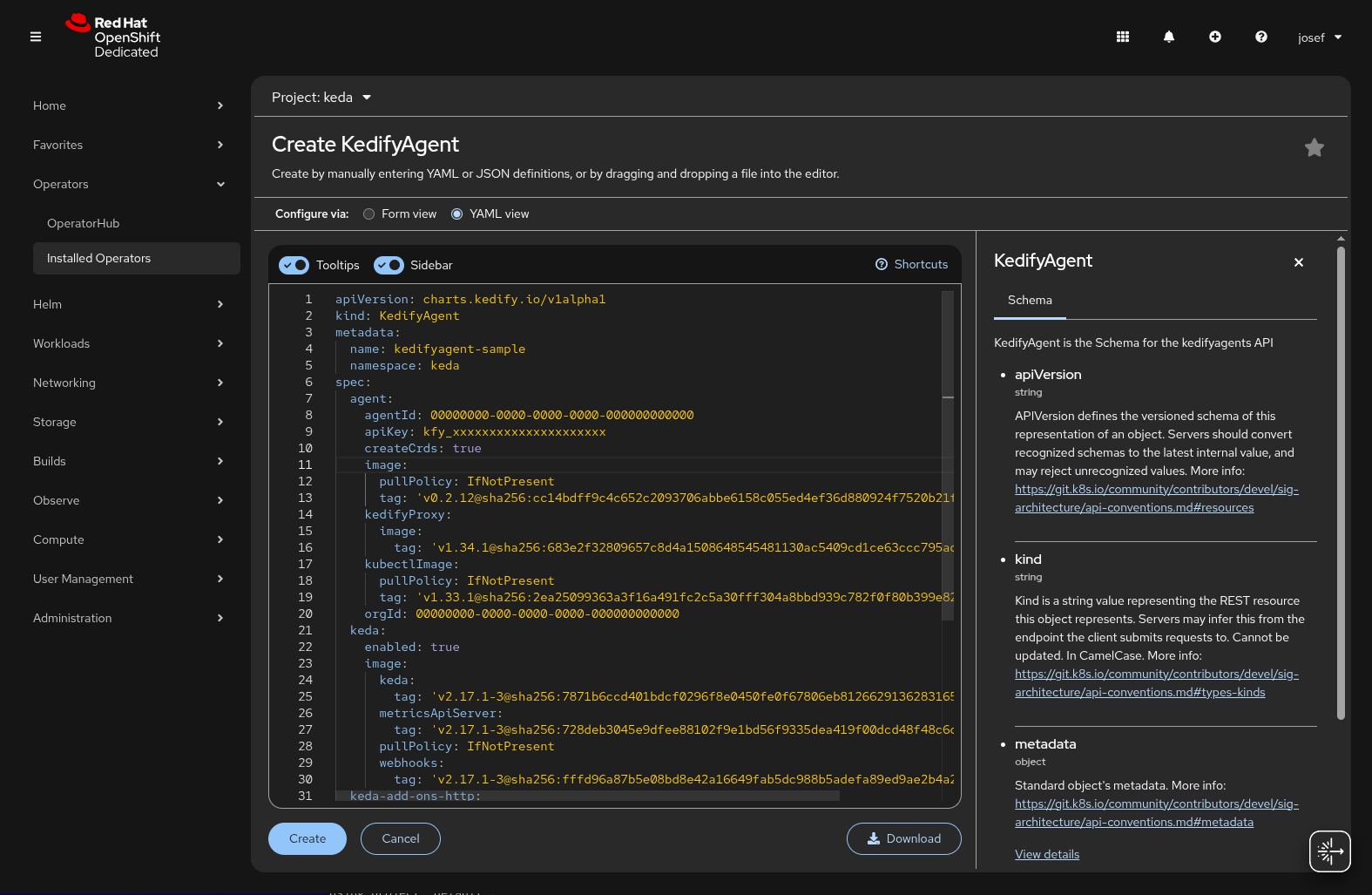
Wait for the operand and controller pods to become ready; elapsed time alone does not verify deployment. You can verify the installation by checking the status of the Kedify Agent in the OpenShift console or by using the OpenShift CLI.
oc get pod -n kedaoc get kedify kedify -n kedaAccess Kedify Dashboard
Section titled “Access Kedify Dashboard”You can find your cluster in the Kedify dashboard. The dashboard provides an overview of your Kedify deployment, including the status of your agent, metrics and Scalers.
Start Using Kedify
Section titled “Start Using Kedify”Now that Kedify is installed, you can start using it to scale your applications. Our documentation provides detailed information on how to use Kedify, including OpenShift-specific section.
Continue with this topic
Section titled “Continue with this topic”Configure and verify: Install with Helm.
Reference: Capability availability and enablement.
Related capabilities: Choose an installation method.